Network Guru: Speed Indicator
Version: v1.7.23
5.40MB
4.5
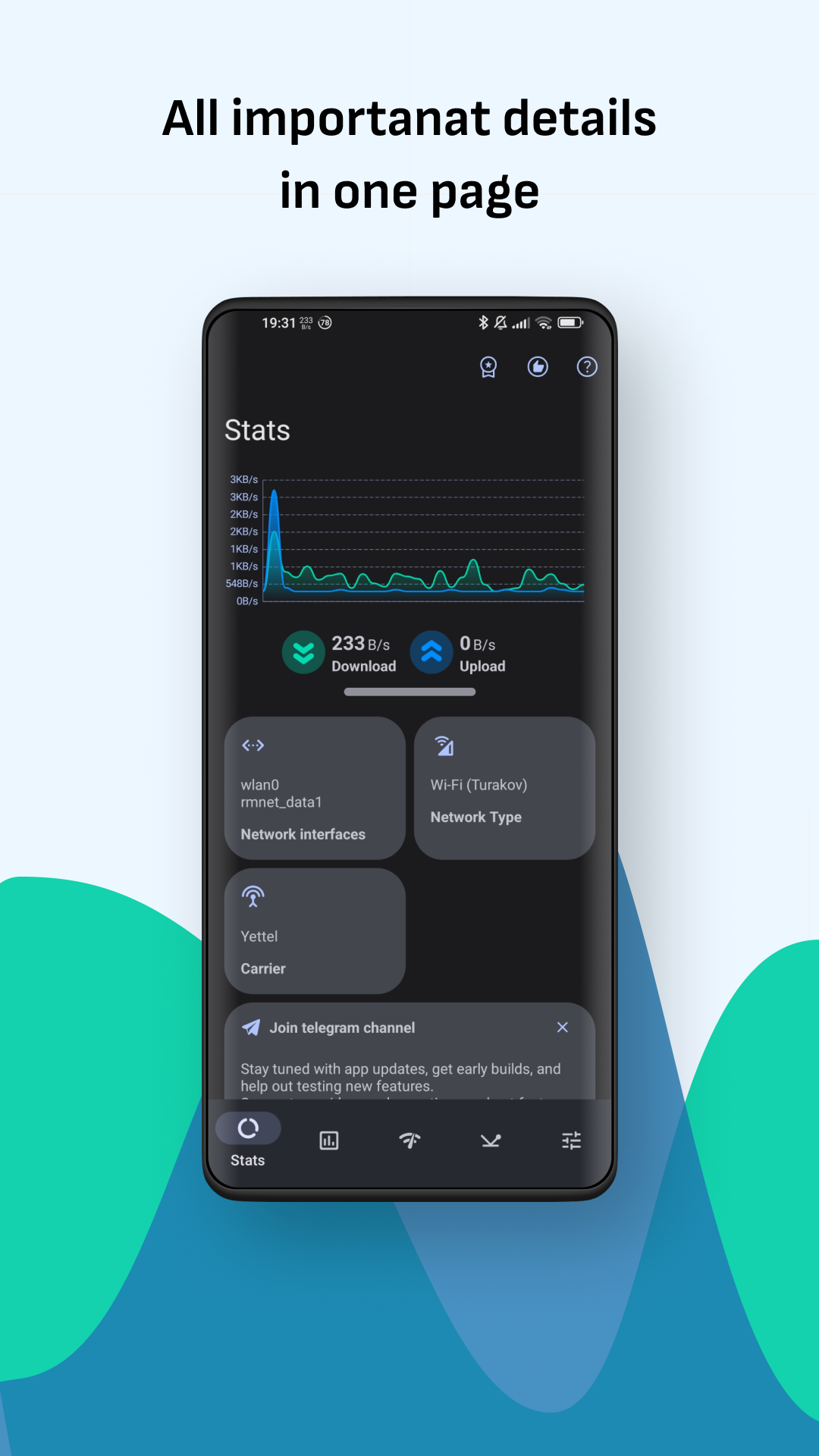
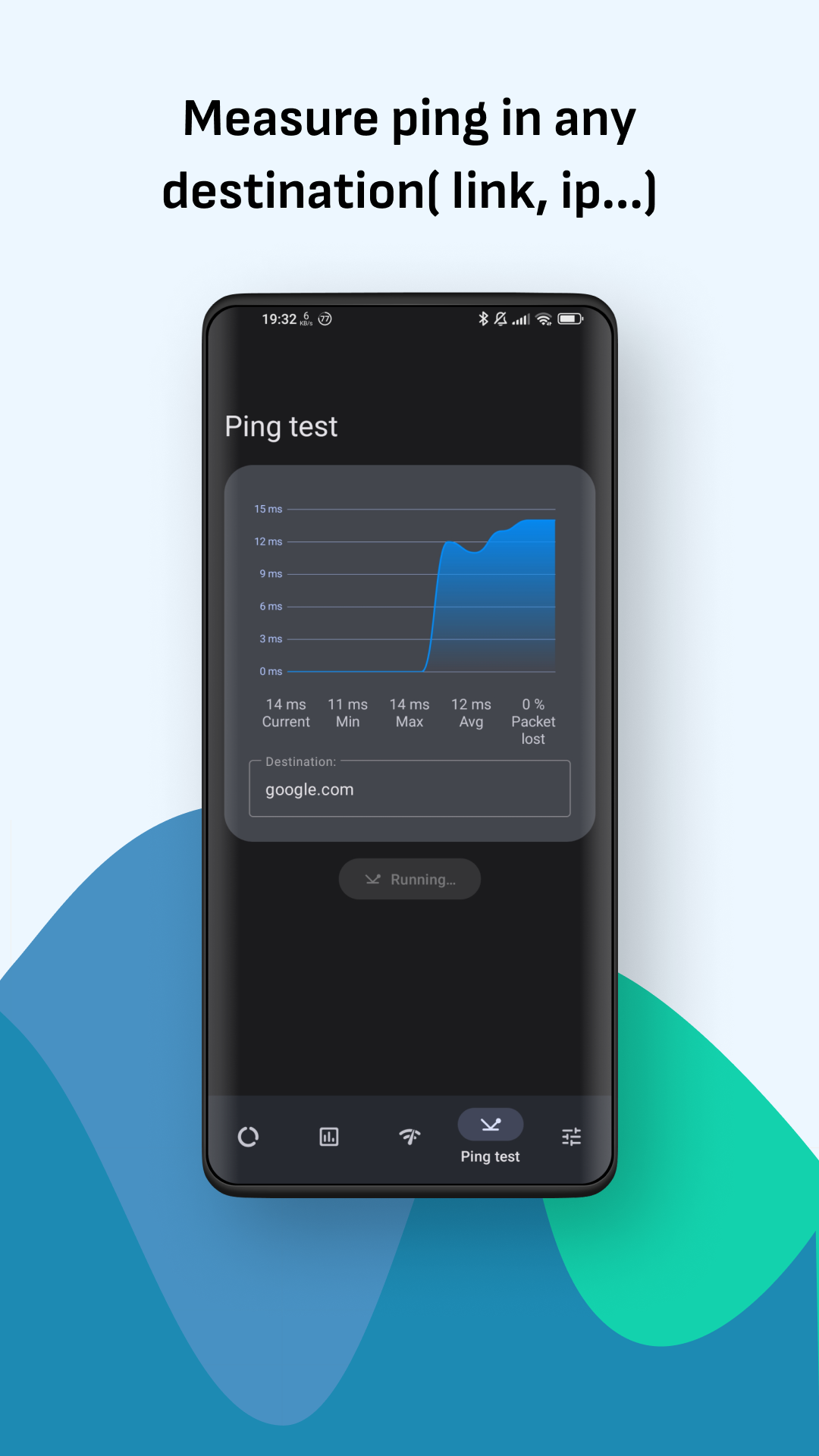
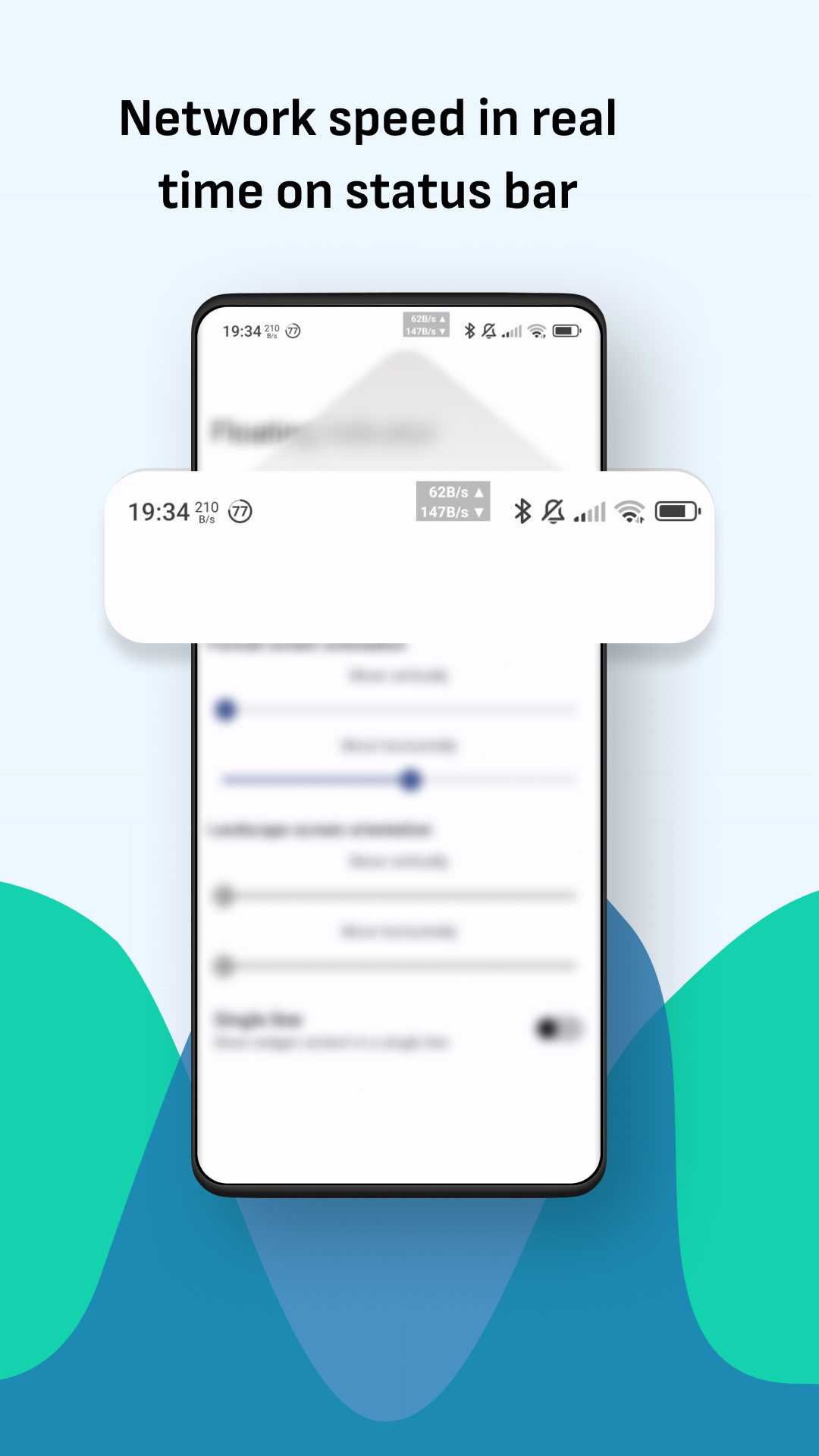
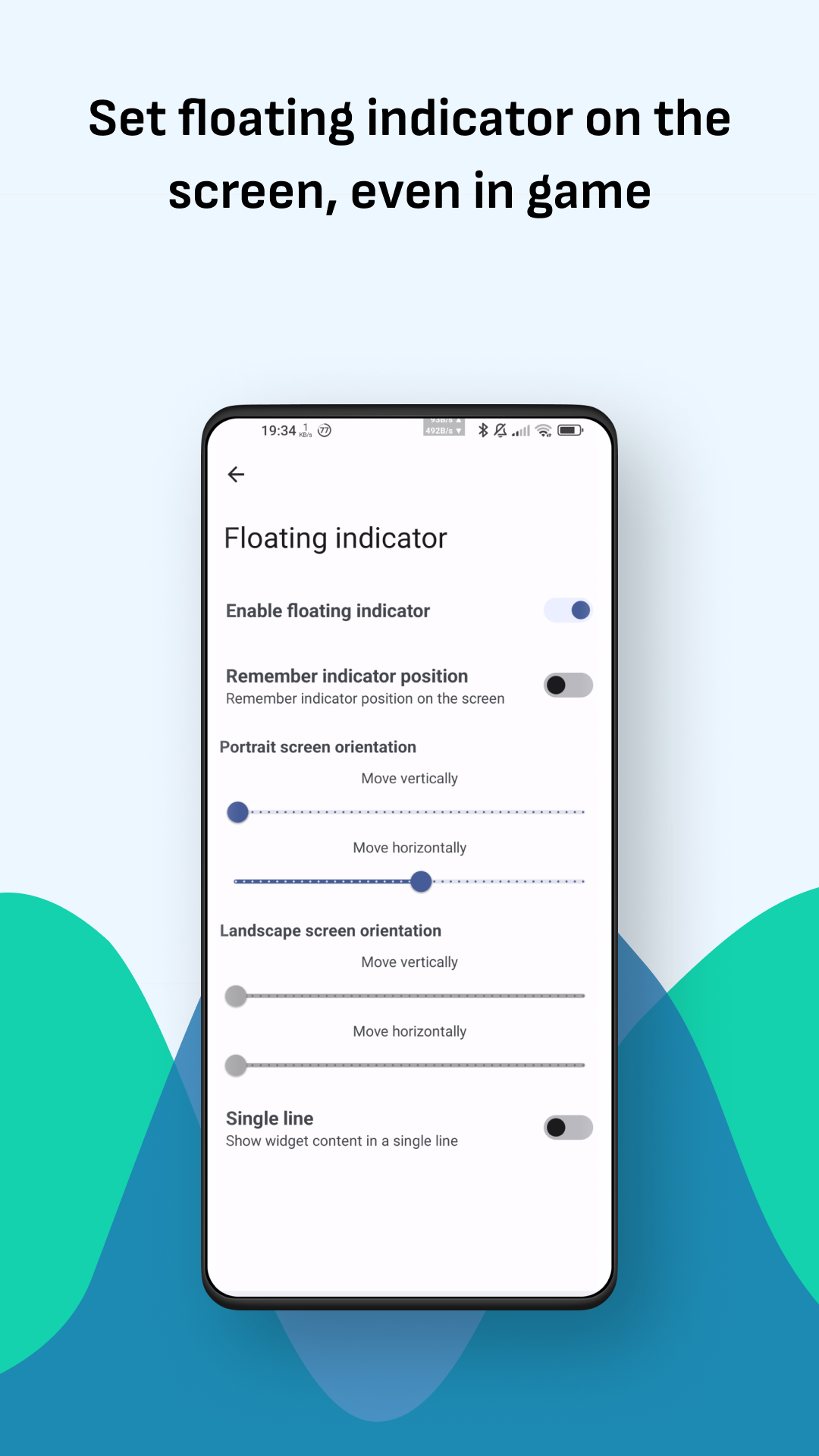
Network Guru: Speed Indicator helps you monitor and understand your device's network performance with quick, at-a-glance indicators and clear numerical speed readings. This utility is built for people who need immediate feedback on connection quality while working, streaming, or troubleshooting, and Network Guru: Speed Indicator keeps that information visible without interrupting other tasks. The app presents real-time upload and download speeds, simple latency cues, and a compact overlay that stays on screen so you can judge whether to switch Wi‑Fi networks, move to a different location, or report a persistent issue.
The core of the app is a lightweight monitor that reports instantaneous upload and download throughput alongside an approximate latency value. Refresh intervals are adjustable so you can prioritize battery life or responsiveness. The on-screen indicator can be resized and positioned to avoid important UI elements, and numeric readouts can be toggled between bits/bytes units and short or detailed formats. Basic historical sampling is available to show short-term trends, helping you see whether a slowdown is a transient blip or a sustained problem.
The controls are intentionally minimal: a small settings panel lets you change the refresh rate, display units, and on-screen opacity, while a persistent overlay offers quick access to a larger readout. Touch targets are sized for one-handed use and the overlay supports drag-and-drop repositioning so it integrates with different device layouts. The settings screen explains each option in plain language and includes an option to reset to sensible defaults if you experiment with display or power settings.
Rather than presenting a complex diagnosis, the app uses simple thresholds and color cues to indicate connection health: for example, green for acceptable throughput, amber for reduced speeds, and red for poor performance. Over time, users can tune these thresholds to match their expectations and network plans. This progression—starting with default thresholds and refining them as you learn typical speeds at home or work—helps the app become more useful the longer you use it, without requiring advanced networking knowledge.
The visual design favors clarity: the overlay combines a small icon, a bold numeric readout, and a subtle bar that fluctuates with instantaneous speed. The overall style is low-contrast and unobtrusive by default to avoid distracting from the app you are actively using, while a high-contrast mode improves visibility in bright outdoor conditions. Indicator levels are continuous rather than discrete, so you see smooth changes in speed rather than jarring jumps between status labels.
Customize how the monitor behaves to match your workflow: choose update frequency, unit display, overlay size, and whether the readout appears on top of fullscreen apps. You can also enable small audible or haptic cues when speeds fall below a chosen threshold, which is useful when you multitask and cannot watch the screen. Short labels and explanatory notes in the settings make it clear what each option changes, and a preview mode lets you test layout changes immediately before they take effect.
The app supports larger text sizes and adjustable contrast to assist users with visual impairments. It operates without an active cloud connection; all measurement and display functions run locally on the device, so privacy-conscious users can monitor their connections without data leaving the phone. The lightweight code path minimizes CPU and battery usage so continuous monitoring is practical over extended periods, and an economy mode reduces sampling frequency to further conserve power.
To report network state the app requests permissions that allow it to read connection type and link statistics; these permissions are standard for monitoring tools and the app explains why each one is needed. Network Guru: Speed Indicator is designed for everyday diagnostics and visual monitoring and does not aim to replace professional packet-capture or enterprise analysis tools. For the clearest measurements, temporarily close bandwidth-heavy apps during a test and move closer to the access point when checking Wi‑Fi performance.
Common uses include quick checks before starting a video call, confirming whether a mobile data plan is meeting advertised speeds, and monitoring fluctuations while gaming or streaming. Because it sits on screen and updates continuously, the app offers ongoing value rather than being a one-time tool; regular monitoring helps you spot intermittent drops and build a practical sense of your usual connection behavior. Small customization options and the ability to fine-tune thresholds give the utility long-term usefulness across different devices and locations.