
CustomEasy
Version: 3.17.4
39.00MB
4.5
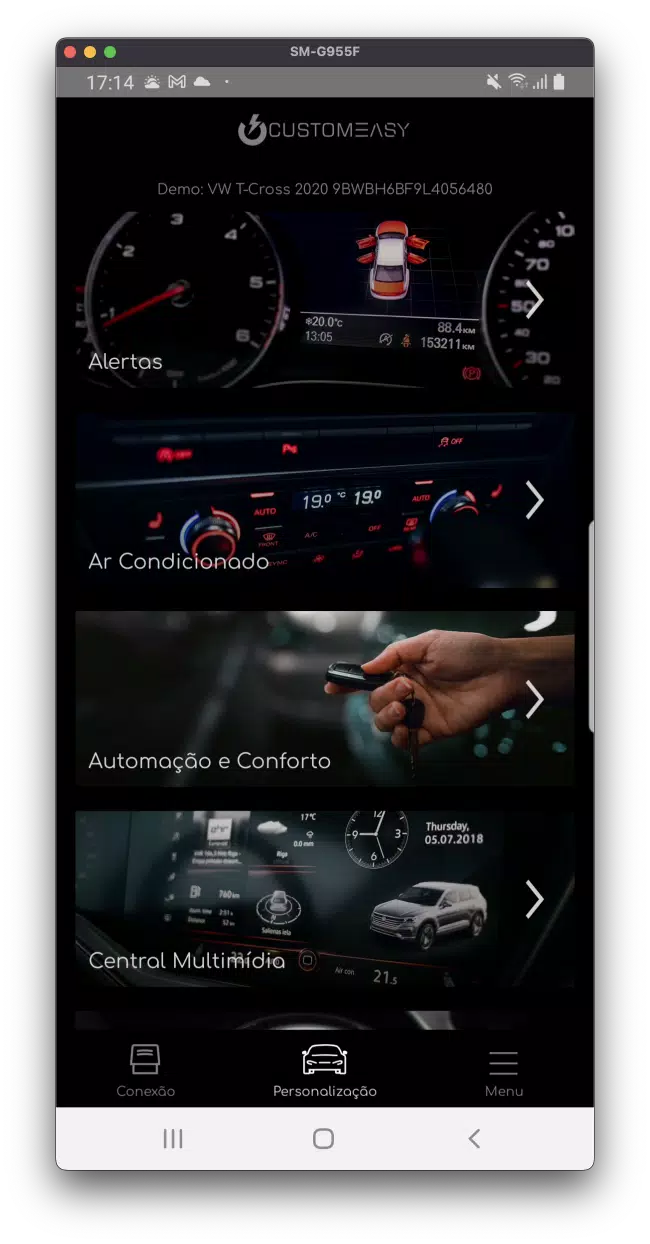
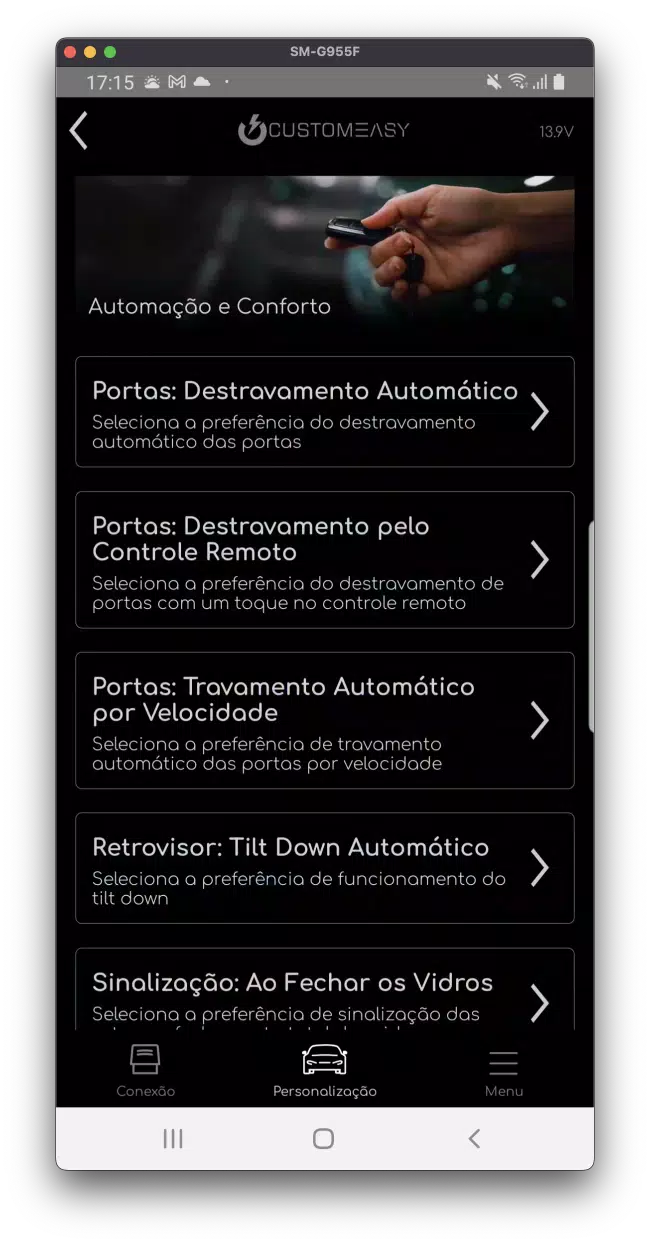
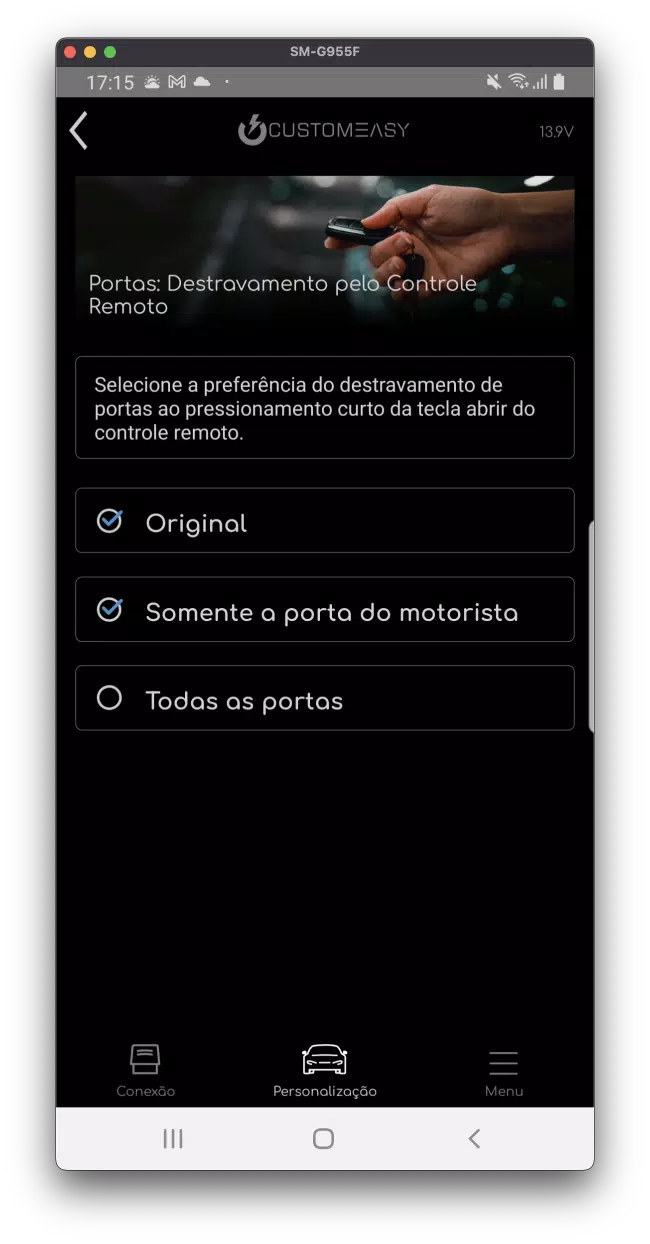
CustomEasy helps users personalize Android devices with a straightforward toolkit for icons, themes, and layouts, letting you create consistent, polished home screens and app styles without technical skills. The app focuses on quick previews, reusable templates, and one-tap application so customization feels fast and reliable.
CustomEasy bundles a set of tools designed to streamline device personalization. You get a theme engine for color palettes, an icon editor for resizing and masking, layout templates for arranging widgets and shortcuts, and an export system that saves presets for reuse across devices. Each feature is built to reduce repetitive setup and accelerate visual changes.
The interface focuses on clarity: a three-panel workflow guides you from concept to application. Begin in the Preview panel to explore palettes and sample icons, move to the Edit panel to tweak individual elements, and finish in the Apply panel to push the changes to the launcher or create a package. Menus are kept shallow to avoid overwhelming first-time users while still exposing advanced options for power users.
Tools are modular so you can combine them in different ways. The icon editor supports vector overlays, drop shadows, and consistent padding rules to keep every app icon aligned. Template sets let you save widget arrangements for different moods — for example, a productivity layout for weekdays and a minimalist layout for weekends. Layered backgrounds and adaptive color rules ensure legibility across different wallpapers.
Try these quick workflows to get practical results fast:
Performance is prioritized so changes feel instantaneous on most mid-range devices. The app uses lightweight rendering for previews and only applies final, higher-resolution assets when the user confirms. Compatibility is broad: CustomEasy supports popular Android launchers and offers APK-style export for launchers that accept custom icon packs. Background processes are kept minimal to preserve battery life.
Small adjustments can have a large visual impact. Stick to two main accent colors and use contrast-aware text settings to keep readability. When editing icons in bulk, preview on multiple wallpaper options to ensure consistent appearance. Use the preset export feature to create a backup before experimenting with major changes.
Accessibility settings help adapt designs for different vision needs. High-contrast mode increases icon borders and text weight; font scaling affects widget labels; and an optional simplified mode hides advanced controls to make routine customization quicker. These options make it easier for a wide range of users to tailor their device without friction.
Getting started takes three simple steps: open the app, pick a template or start from scratch, and use the live preview to refine choices. When you are satisfied, tap apply and choose whether to save the preset locally or export it for sharing. The onboarding tutorial walks through these steps during first launch so new users can be productive immediately.
By focusing on modular tools and reusable presets, the app reduces the time required to achieve a cohesive look while preserving creative control. For users who like to change their phone's appearance regularly, the combination of batch editing, templates, and one-tap application makes routine refreshes simple and repeatable.
Try CustomEasy’s preset examples to learn the system quickly, then adapt the components to craft a style that suits your daily routine. With sensible defaults and flexible options, the app balances ease of use with the depth needed for serious customization projects.